Hi @sasha! Amazing flight! The images and aeroglyphs look beautiful.
In order to combine two Aeroglyphs you simply have to find each KML file and open each of them succesively with Google Earth, they should show up on the same visualization.
One common problem with Aeroglyphs visualization is a wide error margin on the Y axis offset.
GPS devices already have less resolution on the Y axis because of the properties of satellite trilateration. On top of this, the Google Earth terrain model has an important error margin on the same axis. In summary, this results on often parts of the Aeroglyph being hidden underneath earth on Google Earth’s 3D view, which can be observed on your visualization above.
This can be corrected with a very little, very simple code manipulation, that results in an updated KML file that includes an altitude offset property. In my experience, altering this offset results in much more realistic and better looking Aeroglyphs! The best tool to deal with this code is Sublime code editor.
On the following image you can see our recent flight from Miami, overimposed the same flight with a little altitude difference

This is how a neat KML file looks like. Actually I’ve thought of naming this KML filetype variant as Skyhole Mark Up language, instead of the original Keyhole Markup language. The code is commented to make it super clear to understand what changes what. The flight altitude offset canb be identified as “gx:altitudeOffset”
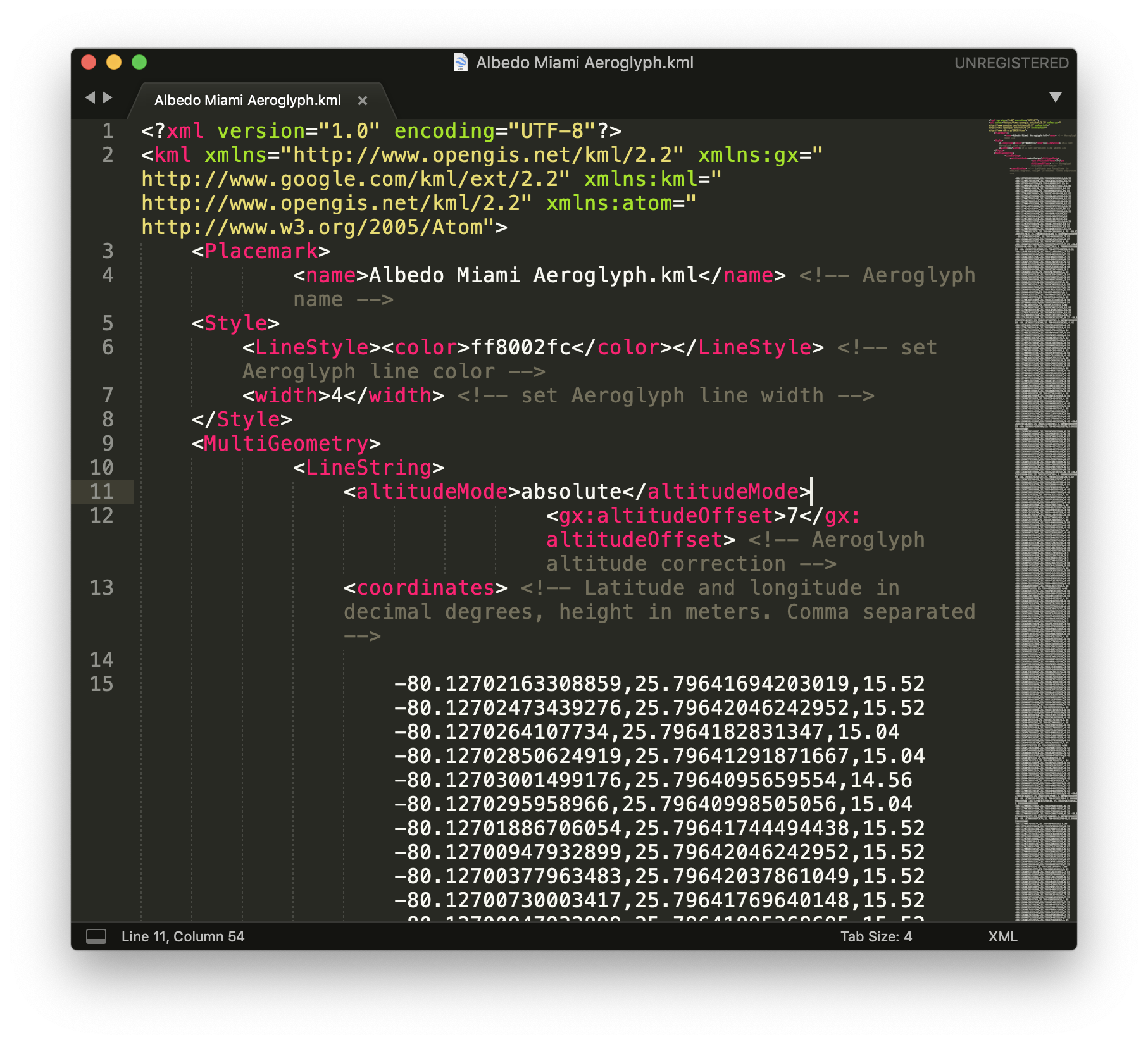
I am attaching on this post two files that are already commented and editable. In order to make your current flight look like these you might want to try to copy and replace all code between the coordinates
tags.


Albedo Miami Aeroglyph.kml (218.9 KB)
RHUL AEROCENE 0702 OK.kml (63.7 KB)